
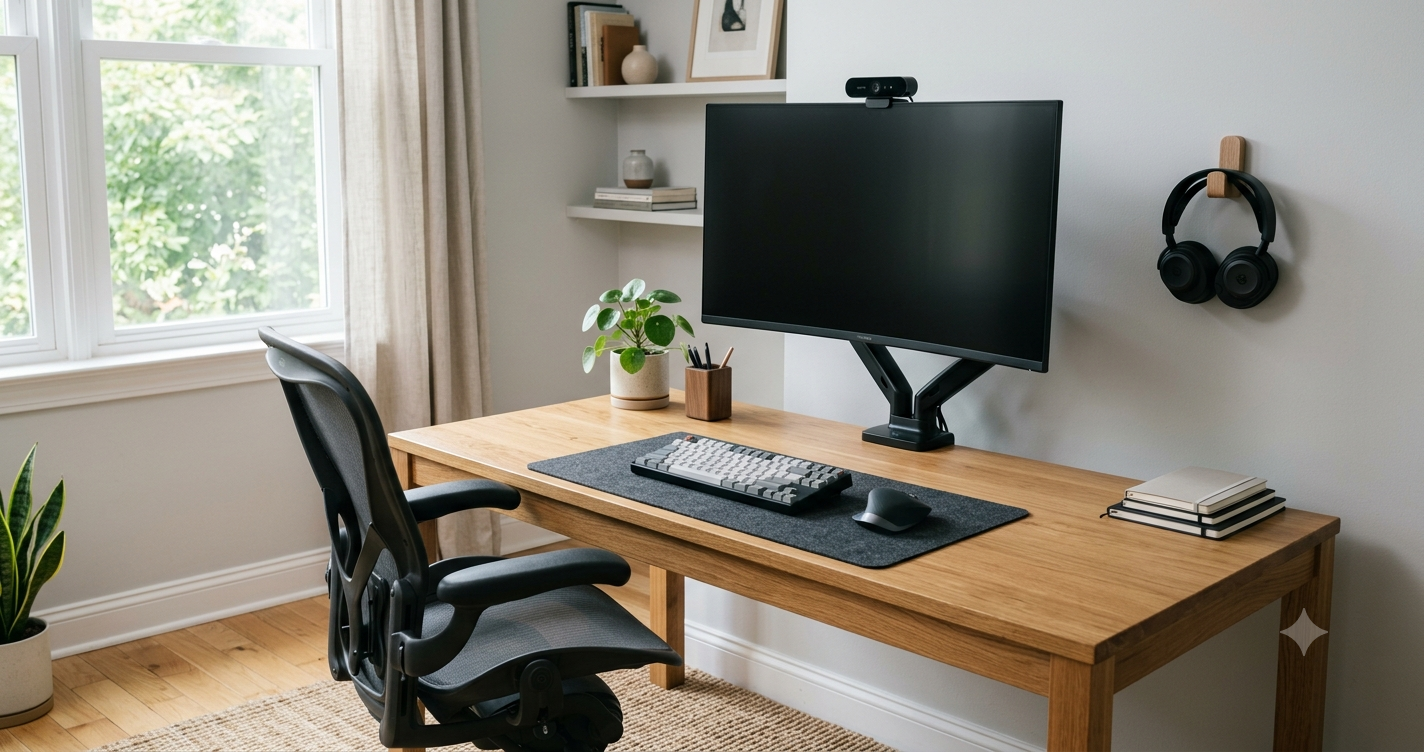
A practical guide to the peripherals and gear that make working from home actually comfortable — based on what expert reviewers consistently recommend.

By: Michael Kuzma, Editor-in-Chief
Last Updated: June 2026
Your employer gave you a laptop and maybe a docking station. That’s the bare minimum. It’s the corporate equivalent of handing someone a tent and saying “you live here now.” The laptop works. But if you’re spending 40+ hours a week at a desk in your home, the stuff around that laptop is what determines whether you end up productive and comfortable or hunched over like a question mark with lower back pain. Bonus points if you got a keyboard, mouse, and webcam, but they’re usually basic models. A few key purchases will make a big difference between surviving through the day and WFH bliss.
The good news: you don’t need to buy everything at once, and the order you buy things in matters. After reading through what Wirecutter, RTINGS, Consumer Reports, TechGearLab, and other expert sources have to say about each category, the priority list is clearer than you’d think. Some things make an immediate, daily difference. Others can wait until you’re settled.
Here’s how to think about building out your workspace, what to buy first, and where the money actually matters.
Priority 1: The Things That Affect Your Body
These are the purchases that determine whether you’re physically comfortable at 5 p.m. or counting down the hours from 2 p.m. They’re also where spending more tends to pay off the most, because your body keeps a running tab of every bad ergonomic decision you make.
Office Chair
This is the single most important purchase in your home office. Not the monitor. Not the keyboard. The chair. You’re going to sit in it for 8+ hours a day, and the difference between a good ergonomic chair and whatever you dragged over from the dining table is the difference between being functional at the end of the day and needing a chiropractor.
The price range in this category is enormous. You can spend under $200 or over $1,500, and expert sources have top picks at every tier. The consistent finding is that adjustability matters more than brand name. A chair that lets you adjust seat height, seat depth, lumbar support, and armrests will fit your body better than an expensive chair that looks great but only adjusts up and down. Your body is not the same as the person who designed the showroom display, and it shouldn’t have to be.
One thing worth knowing: the premium chairs (Steelcase, Herman Miller) come with warranties measured in decades, not years. If you amortize a $1,200 chair over its 12-year warranty, it costs less per year than most budget chairs cost per replacement cycle. That’s not a reason to overspend if you can’t afford it, but it’s worth knowing the math.
See our full review: Best Office Chairs
Computer Monitor
Your laptop screen is too small. You know this. Everyone who works from home full-time knows this. An external monitor gives you more screen real estate, puts your display at eye level (which your neck will thank you for), and makes everything from spreadsheets to video calls genuinely easier.
The main decision is size and resolution. A 27-inch 4K monitor is the sweet spot that most expert sources converge on for general office work. It’s big enough to work comfortably with two windows side by side but not so big that you’re turning your head constantly. If you work with large spreadsheets or need even more space, a 32-inch or an ultrawide might be worth it, but they take up significantly more desk space.
One thing people overlook: USB-C connectivity. If your laptop supports it, a monitor with USB-C input can charge your laptop, receive the video signal, and connect to your peripherals through a single cable. This is one of those “I didn’t know I needed this” features that completely changes how clean your desk looks and how fast you can sit down and start working.
See our full review: Best Computer Monitors
Priority 2: The Things You Touch All Day
You interact with your mouse and keyboard more than anything else at your desk. Thousands of clicks and keystrokes per day. Upgrading from the generic peripherals that came with your setup (or worse, using your laptop’s built-in keyboard and trackpad) is one of the highest-comfort-per-dollar improvements you can make.
Computer Mouse
The mouse that came with your computer, assuming one even came with it, is designed to be cheap, not comfortable. An ergonomic mouse that actually fits your hand makes a real difference over a full workday, and the good ones aren’t expensive.
The big choice is between a traditional mouse and an ergonomic vertical or trackball design. Traditional mice work fine for most people. Vertical mice hold your hand in a handshake position that reduces wrist strain, which matters if you’ve ever felt that twinge in your wrist at the end of a long day. Trackballs move the cursor without moving the mouse at all, which some people love and some people find infuriating. There’s no wrong answer, but if you’ve never tried an ergonomic shape, it’s worth considering before you default to traditional.
Wireless is the default now. Bluetooth connects without a dongle, which is clean but can occasionally have lag. A USB receiver dongle is more reliable but uses a port. Many mice support both, which is the best of both worlds.
See our full review: Best Computer Mice
Computer Keyboard
If your laptop is docked and connected to an external monitor, you need an external keyboard. Even if your laptop sits open in front of you, a separate keyboard at the right height and angle is better for your wrists and posture than typing on the laptop itself.
The main decision is mechanical vs. membrane. Mechanical keyboards have individual switches under each key that give a tactile response and a satisfying click (or a quieter “thock,” depending on the switch type). Membrane keyboards are quieter, flatter, and cheaper. Expert sources tend to recommend mechanical for people who type a lot, but this is genuinely a preference thing. If you share a home office with someone who will murder you for the clicking, get a membrane or a mechanical with silent switches.
Size matters too. A full-size keyboard has a number pad on the right. A tenkeyless (TKL) drops the number pad for a smaller footprint, which brings your mouse closer to center and reduces shoulder strain. If you don’t use a number pad regularly (and most people don’t, even though they think they do), TKL is the better ergonomic choice.
See our full review: Best Computer Keyboards
Priority 3: The Things That Make You Look and Sound Professional
Nobody judges your chair on a Zoom call. They absolutely judge your video and audio quality. Looking and sounding professional in virtual meetings is a genuine career consideration now, and the gap between “laptop webcam in bad lighting” and “external webcam with decent audio” is noticeable.
Webcam
Your laptop’s built-in camera is probably terrible. Most of them are. They’re tiny sensors crammed into a thin bezel, and they produce a washed-out, grainy image that makes you look like you’re testifying via satellite link from an undisclosed location. An external webcam fixes this immediately.
The webcam market has gotten interesting lately. Logitech used to be the only real option, but brands like Obsbot, Insta360, and Anker have pushed in with competitive models at every price point. The good news is that even budget webcams are now significantly better than any laptop camera.
One practical note: most video conferencing platforms cap outgoing video at 1080p, so a 4K webcam’s resolution advantage is mostly visible in local recordings or from the sharper downscaled image. Don’t overspend on resolution if your primary use is Zoom calls. What matters more is low-light performance, autofocus speed, and color accuracy, because those are the things that actually make you look better on screen.
See our full review: Best Webcams
Bluetooth Headset
If you take calls regularly (and you do, because you work from home), a dedicated headset is a significant upgrade over your laptop’s built-in microphone and speakers. Your coworkers can hear the difference. Your dog barking in the background? A good headset’s noise cancellation handles that. The echo and tinny audio from laptop speakers? Gone.
There are two main styles for office use. Over-ear headsets with a boom microphone deliver the best call clarity and noise cancellation. They’re bulkier, but if you’re on calls for hours a day, they’re the professional choice. Mono Bluetooth earpieces (the single-ear style) are lighter, more portable, and leave one ear open so you can hear your surroundings. They’re great for people who move around the house during calls or who find over-ear headsets uncomfortable in warm weather.
There’s also a third option that most consumer review sites don’t cover: DECT headsets. These use a dedicated base station instead of Bluetooth, which gives you significantly more wireless range (often 300+ feet), a more stable connection, and the ability to connect directly to a desk phone if you use one. Brands like Jabra, Poly, EPOS, and Yealink dominate this space. The trade-off is that DECT headsets are tied to their base station, so they’re not portable the way a Bluetooth headset is. You’re not taking them to a coffee shop. But for a permanent home office where you might wander into the kitchen during a call without dropping audio, they’re hard to beat. Our Bluetooth Headsets review doesn’t cover DECT models (not enough expert sources with the testing rigor we require), but they’re worth investigating independently if range and call stability are priorities.
If you already own good wireless earbuds or noise-canceling headphones, those might be sufficient for occasional calls. But if calls are a major part of your day, a purpose-built headset with a boom mic will outperform consumer earbuds on voice clarity every time. Your coworkers won’t tell you this. They’ll just quietly think your audio is bad.
See our full review: Best Bluetooth Headsets
Priority 4: The Things You Need Less Often (But Still Need)
Printer
Here’s a hot take: you might not need a printer. If you’re working from home full-time and your workflow is entirely digital, it’s possible that the number of times you actually need to print something per year can be counted on one hand. In that case, your local library or an office supply store’s print service is cheaper than owning a printer that sits idle and dries out its ink cartridges.
But if you do need to print regularly (tax documents, shipping labels, forms that still require a physical signature for some reason, kids’ homework), then a home printer is worth having, and the cost-of-ownership differences between models are staggering. Some printers are cheap to buy and expensive to feed. Others are the opposite. Ink tank printers have essentially flipped the economics: higher upfront cost, but the ink lasts for thousands of pages instead of hundreds. Expert sources have shifted heavily toward recommending ink tank models over traditional cartridge printers for anyone who prints with any regularity.
Laser printers are the other option. They’re better for text-heavy documents, the toner doesn’t dry out when you don’t use the printer for weeks, and the per-page cost is low. If you mostly print documents rather than photos, a monochrome laser might be all you need.
See our full review: Best Printers
The Build Order
If you’re starting from scratch (laptop and nothing else), here’s the order that gives you the most quality-of-life improvement per dollar spent:
Week 1: Chair and monitor. These are the two things that affect your body the most. A bad chair will hurt you. A laptop screen will strain your neck. Fix these first.
Week 2-3: Mouse and keyboard. Once you have a proper desk setup with a monitor at eye level, you need proper input devices. These are relatively cheap and make an immediate difference.
Month 2: Webcam and headset. Now that you’re comfortable and productive, look and sound professional on calls. Your coworkers and clients will notice the upgrade even if they don’t mention it.
When you need it: Printer. Don’t buy one preemptively. Wait until you actually need to print something, then make an informed choice based on how often you think you’ll print.
This isn’t a rigid timeline. If your first meeting is tomorrow and you’re on camera, bump the webcam up. If your back is fine but your calls sound terrible, start with the headset. The priority order is a guide, not a rule.
What Your Employer Might Pay For
Before you buy anything, check your company’s home office policy. Many employers offer a stipend for remote office equipment, and some will straight-up buy you a chair, monitor, or headset if you ask. Others reimburse up to a fixed amount. The worst they can say is no, and the best case is that your company pays for the Steelcase instead of you buying the budget option.
If your employer provides equipment, you typically don’t get to choose the exact model. But if they offer a stipend and let you pick, the reviews linked above will help you spend that money well.
What Matters Less Than You Think
Standing desks. Expert sources are increasingly lukewarm on standing desks as a health intervention. The research on their benefits is mixed, and most people who buy them end up standing for about 20 minutes before lowering them back down. A good chair used properly is more consistently beneficial than a standing desk used occasionally. If you want one, fine, but don’t prioritize it over a good chair.
Desk lamps and “productivity lighting.” Decent overhead room lighting is fine for most people. Task lighting matters if you’re reading physical documents, but for screen work, the main concern is reducing glare on your monitor, not illuminating your desk. A lamp is nice. It’s not a priority purchase.
Cable management. It’s aesthetically satisfying and functionally irrelevant. Your desk looking messy doesn’t affect your work. Manage your cables after you’ve handled everything else on this list, if you care.
Every category linked above has a full expert consensus review with specific model recommendations, trade-offs, and how the major review sources compare. We update them regularly as expert recommendations change.
For the full review in each category:
- Best Office Chairs
- Best Computer Monitors
- Best Computer Mice
- Best Computer Keyboards
- Best Webcams
- Best Bluetooth Headsets
- Best Printers
For help choosing between product types in other areas of your home, see our other buying guides: